
Email settings and templates
A project’s Email page has three tabs: Settings (the email server it sends through), Templates (what its emails say), and Log (what it sent). Every member can see them; owners and developers can change them.
Settings
Section titled “Settings”By default a project sends through the install’s email server, and the page says Using this server’s email settings. On a local install that server is the local inbox, so emails show up at http://localhost:8025.
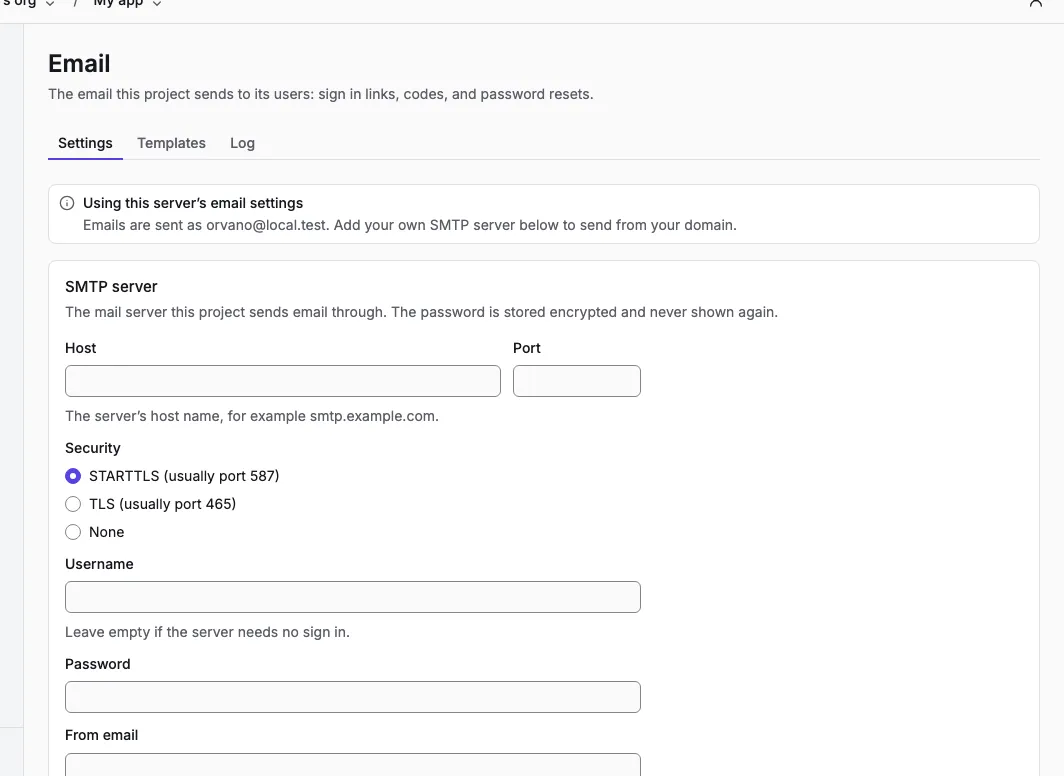
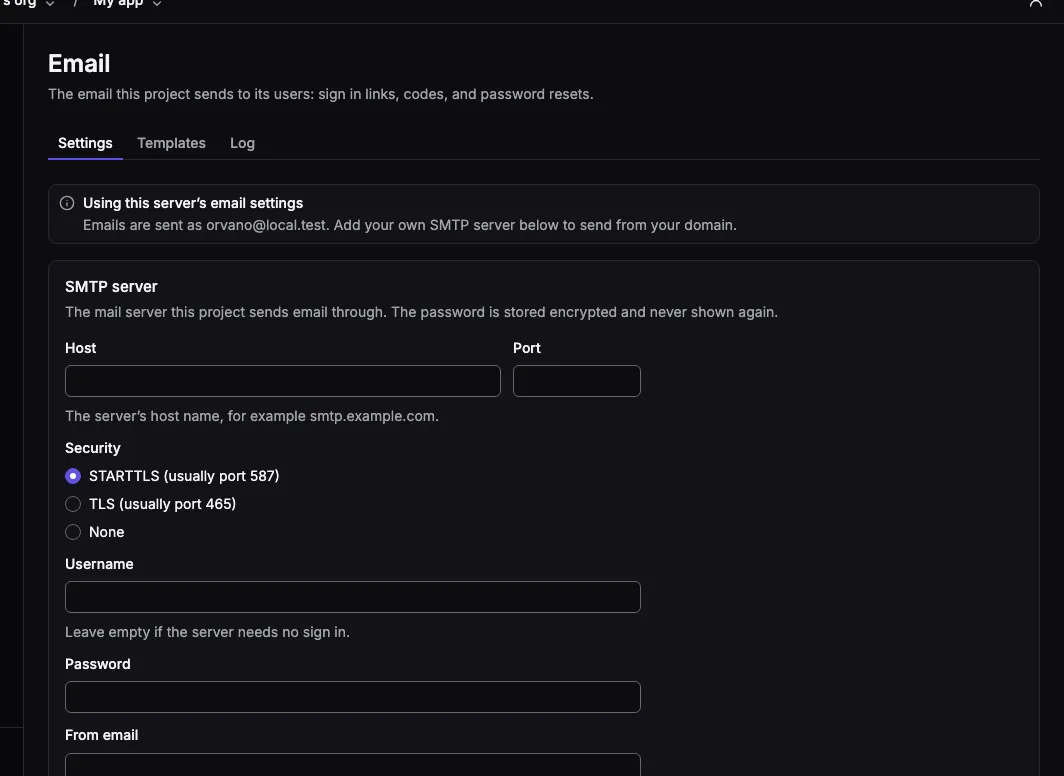
To send from your own domain, fill in the SMTP server form: Host, Port, Security, Username, Password, From email, and optionally From name and Reply to. Select Send test email to send a test to your own address with the values in the form, then save. Stop using these settings goes back to the install’s server.
A project’s server must be on a public address (smtp_host_not_allowed otherwise). Email delivery covers providers, the install’s server, and what each failure means.
Templates
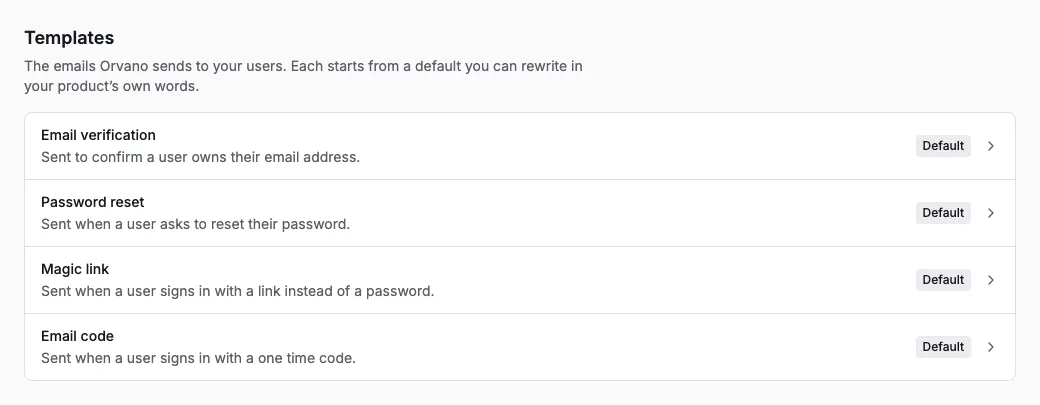
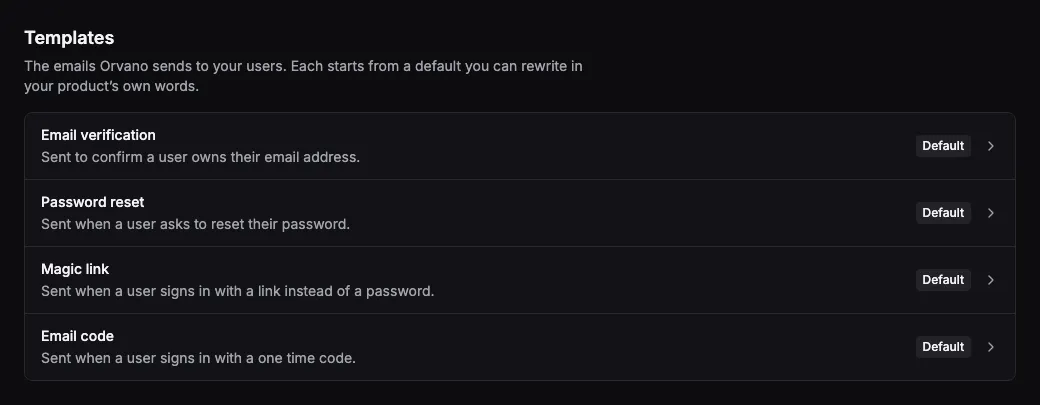
Section titled “Templates”Orvano sends four emails, each from a template you can rewrite in your product’s own words:
| Template | Sent for |
|---|---|
| Email verification | email verification, and confirming an email change |
| Password reset | password reset |
| Magic link | magic links |
| Email code | email codes |
Open one to edit its Subject, HTML, and Text. The preview on the right updates as you type, with your project’s name and your own email as sample values. Send test emails the preview to you, and Reset to default brings back Orvano’s version. Leave Text empty to generate it from the HTML.
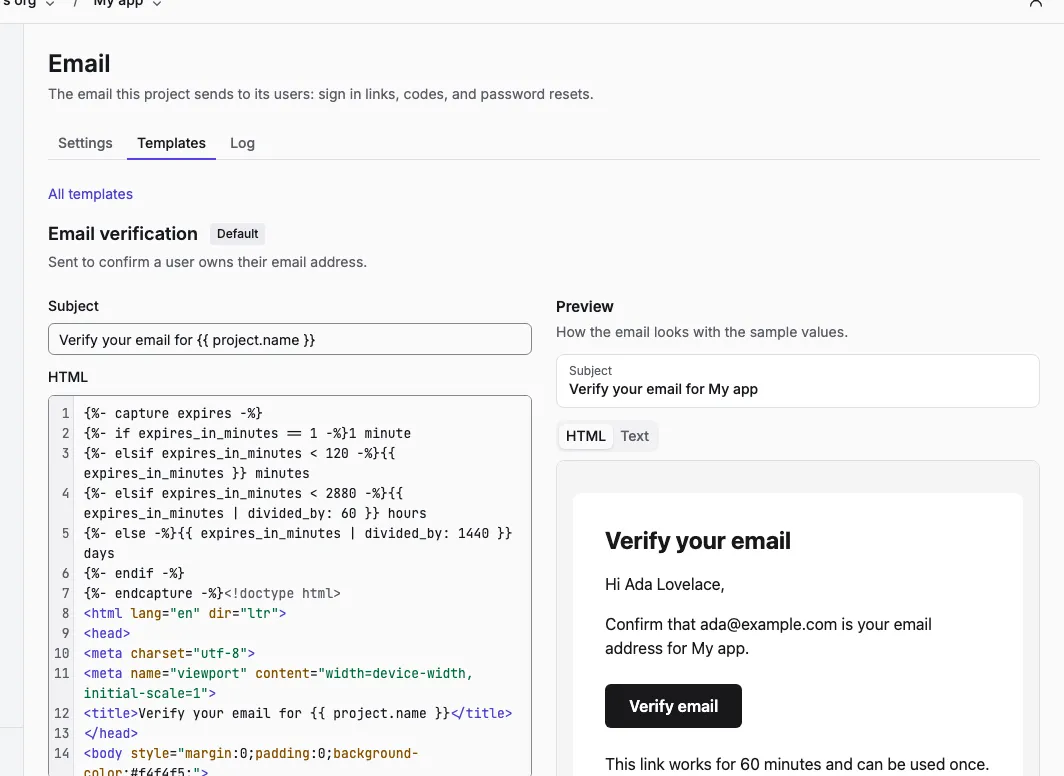
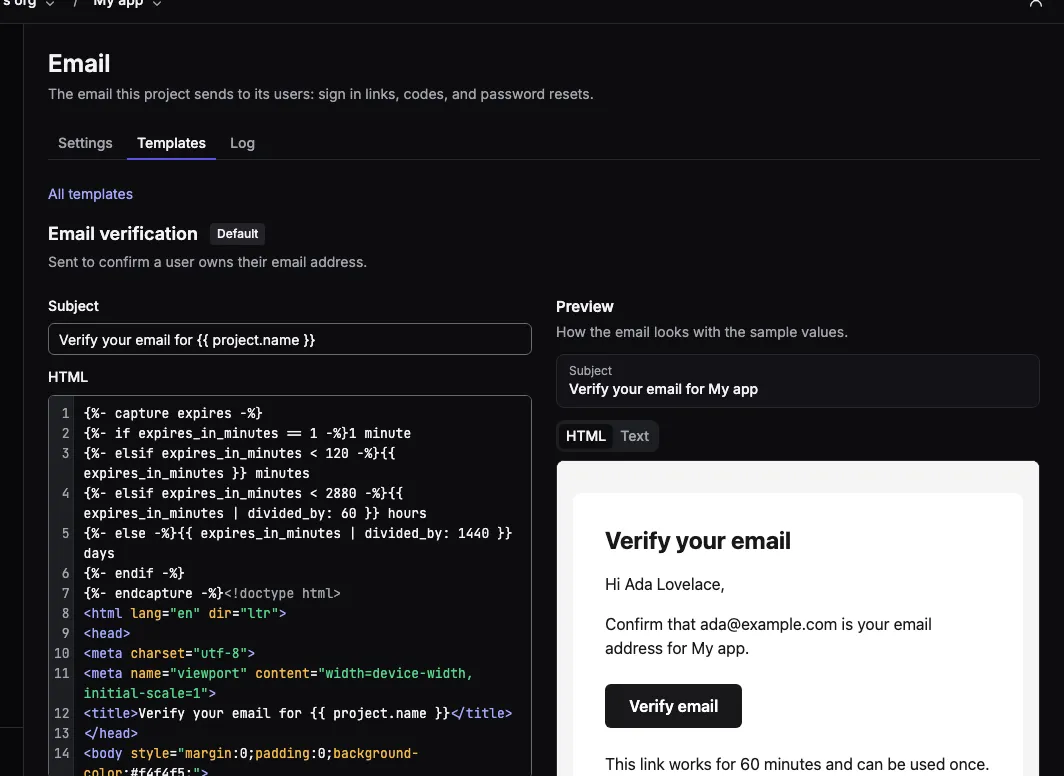
Templates use Liquid. Each template offers these variables, with a copy button for each in the editor:
| Variable | What it holds |
|---|---|
project.name |
Your project’s name. |
user.email |
The address the email is sent to. |
user.name |
The user’s name; empty when they haven’t set one. |
action_url |
The link the user opens to finish (every template but Email code). |
code |
The 6 digit code (Email code only). |
expires_in_minutes |
How many minutes the link or code works. |
A template that uses any other variable can’t be saved (template_invalid). Values are HTML encoded in the HTML part, and include and render aren’t allowed. If a saved template ever fails when an email is sent, Orvano sends the default instead, so the user still gets their link.
The Log tab lists the project’s emails from the last 30 days: the template, the masked recipient, whether it was sent, how many tries it took, and the reason for any failure. Orvano keeps no email content once an email is sent.