
Run Orvano locally
Every quickstart starts here. You run Orvano 0.2.0 on your own machine, on http://localhost:7700, with a local inbox that catches every email it sends. Nothing is reachable from your network, and you need no domain, server, or email account.
What you need
Section titled “What you need”- Docker Desktop, or Docker Engine on Linux, with Docker Compose 2.24.6 or later. Check with
docker compose version. - Ports 7700 and 8025 free on your machine.
Start it
Section titled “Start it”Make a folder for this install, write its files, and start it:
mkdir orvano-local && cd orvano-localdocker run --rm --user "$(id -u):$(id -g)" -v "$PWD:/install" ghcr.io/orvanohq/orvano:0.2.0 install --local --yesdocker compose up -d --waitmkdir orvano-local; cd orvano-localdocker run --rm -v "${PWD}:/install" ghcr.io/orvanohq/orvano:0.2.0 install --local --yesdocker compose up -d --waitThe second command runs the Orvano image once. It writes .env, docker-compose.yml, docker-compose.local.yml, and initdb/ into the folder, generates every secret, and prints what to do next. On macOS and Linux, --user makes the files yours. The third command starts Orvano and waits until every service is healthy, which takes about a minute the first time while Docker pulls the images. To check it yourself, call http://localhost:7700/v1/health (health.get); it answers 200.
The installer prints, in this order:
- The next command,
docker compose up -d --wait. - The console,
http://localhost:7700. - The setup link,
http://localhost:7700/setup#ost_…. - The local inbox,
http://localhost:8025. - Your master key. Keep the whole
.envfile somewhere safe: losing it makes every secret Orvano stores unrecoverable. - How to stop and reset the stack.
Create the first admin
Section titled “Create the first admin”Open the setup link the installer printed. Only that link can create the first admin, once. Fill in your name, email, and a password, then select Create the first admin.
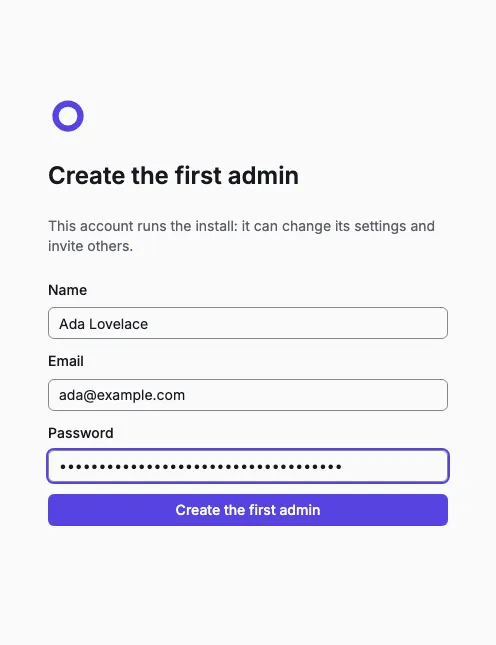
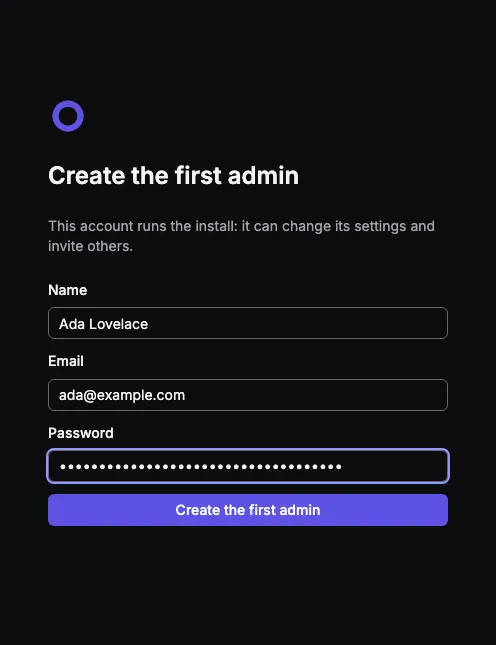
You land in your personal org, signed in. From here every quickstart creates a project and adds the platform its app needs.
Read the emails Orvano sends
Section titled “Read the emails Orvano sends”Every email Orvano sends from this stack (verification links, password resets, sign in codes, invites) lands in the inbox at http://localhost:8025. No email ever leaves your machine. The installer set this up for you, so the email guides work right away.
What runs
Section titled “What runs”| Service | What it does | Reachable at |
|---|---|---|
gateway |
Serves the console and the API | http://localhost:7700 |
mailpit |
Catches every email | http://localhost:8025 |
api, worker, realtime |
Orvano itself | inside Docker only |
postgres |
Your data | inside Docker only |
Both published ports listen on 127.0.0.1 only. Docker names the containers and the data volume after the folder’s own COMPOSE_PROJECT_NAME, so two local folders never share a database.
Stop, start, and reset
Section titled “Stop, start, and reset”Run these in the install folder:
- Stop it, keeping your data:
docker compose down - Start it again:
docker compose up -d --wait - Delete everything (every project, user, and email):
docker compose down -v. Run this before you delete the folder, or the data volume stays behind.
Upgrade
Section titled “Upgrade”Run the same docker run command in the same folder with a newer version of the image, then docker compose up -d --wait. It keeps every secret and your data; migrations run on start. This page is for ghcr.io/orvanohq/orvano:0.2.0.
Use another port
Section titled “Use another port”Add --port <n> to the docker run command (1024 to 65535, not 8025). On a folder that already runs on another port, everyone has to sign in again, so the installer asks first; --yes answers for you.
Troubleshooting
Section titled “Troubleshooting”- Port 7700 or 8025 is already in use. Stop the program using it, or rerun the
docker runcommand with--port 7800for the console. Port 8025 is fixed; stop the other mail catcher. - Use
localhost, never127.0.0.1. The gateway answers onlylocalhost, and Orvano builds its token issuer from that URL. Your app’s settings must sayhttp://localhost:7700. localhostresolves to::1first. Browsers, Node, Dart, and .NET all fall back to127.0.0.1on their own; you don’t need to change anything.- Compose says it doesn’t know
!override. Your Docker Compose is older than 2.24.6. Update Docker Desktop or the Compose plugin. - The folder already holds a server install. A folder is either local or a server install, never both, and the installer refuses to convert one. Use an empty folder.
This stack is for building on your machine. To run Orvano for real users, install it on a server.