
JavaScript quickstart
You build a small web app in plain TypeScript where people sign up with an email and a password, sign in, see their name and email, and sign out. It uses @orvano/js 0.2.0 in the browser, with Vite to serve it. The session lives in the browser’s localStorage, so people stay signed in across reloads. It takes about ten minutes.
The finished app is examples/js-quickstart in the Orvano repo. Every file below comes from it, and CI runs it on every change.
1. Start Orvano
Section titled “1. Start Orvano”If Orvano isn’t running on your machine yet, run these three commands. Run Orvano locally explains each one.
mkdir orvano-local && cd orvano-localdocker run --rm --user "$(id -u):$(id -g)" -v "$PWD:/install" ghcr.io/orvanohq/orvano:0.2.0 install --local --yesdocker compose up -d --waitmkdir orvano-local; cd orvano-localdocker run --rm -v "${PWD}:/install" ghcr.io/orvanohq/orvano:0.2.0 install --local --yesdocker compose up -d --waitYou should see every service report Healthy, and the console open at http://localhost:7700.
2. Set up your project in the console
Section titled “2. Set up your project in the console”-
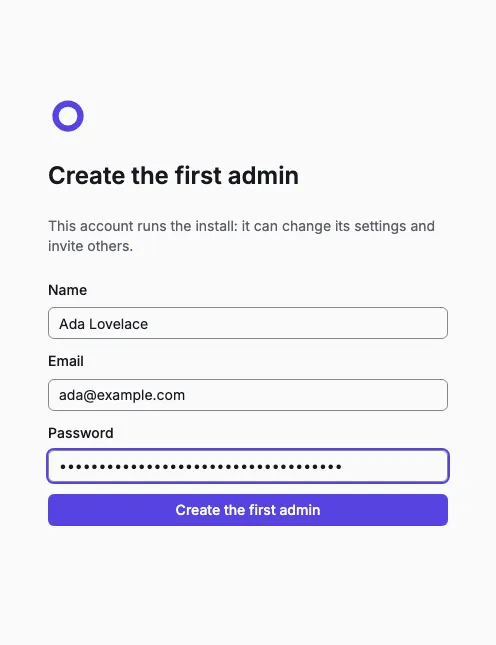
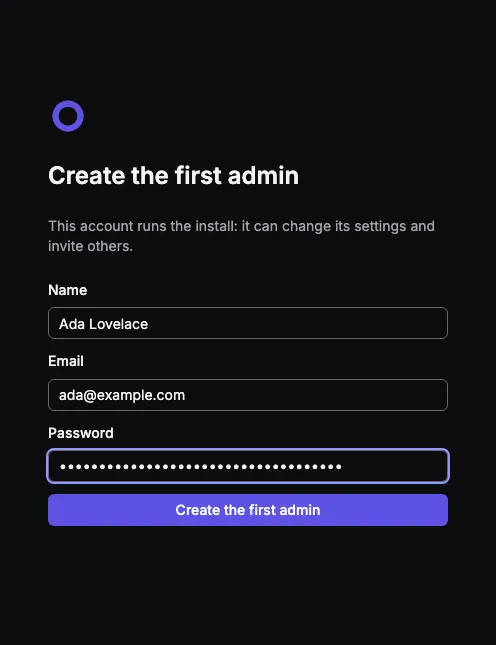
Open the setup link the installer printed and create the first admin. You land in your personal org.
-
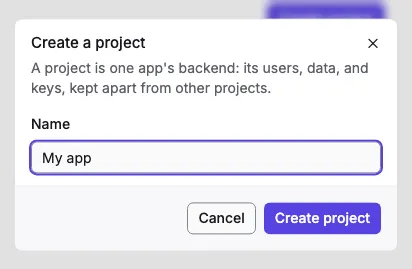
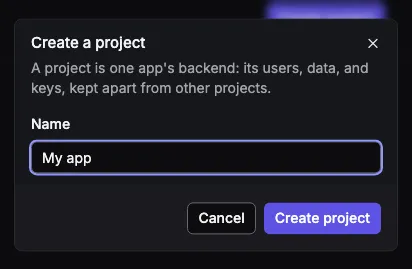
Select Create project, name it, and select Create project again. Setting it up takes a few seconds.
-
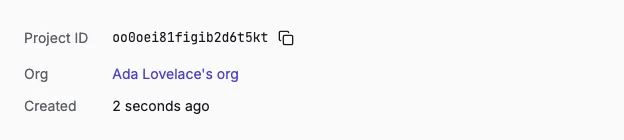
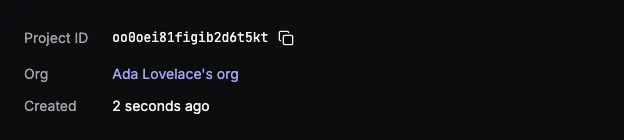
On the project’s overview, copy the Project ID. Your app sends it with every request.
-
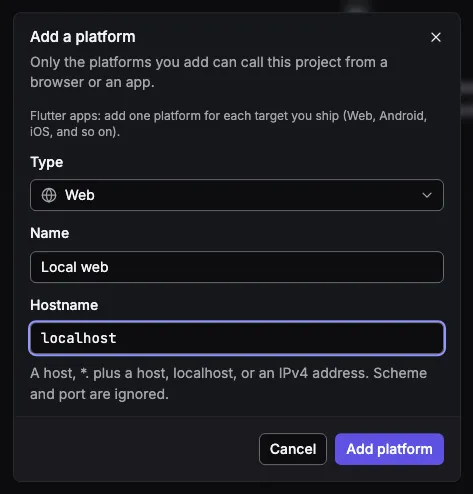
Open Platforms, select Add platform, keep the type Web, name it, enter
localhostas the hostname, and select Add platform. Browsers send the page’s origin with every call, and Orvano answers only the origins of your Web platforms.localhostcovers every port, so it covers Vite on 5173.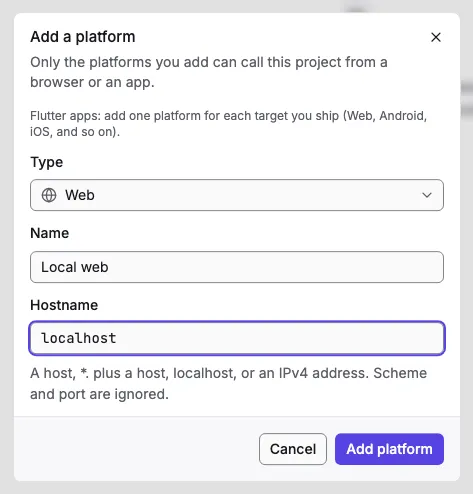
3. Create the app
Section titled “3. Create the app”Make a folder for the app with this package.json, then run npm install. It pins @orvano/js to 0.2.0, the version of the Orvano you’re running.
{ "name": "js-quickstart", "private": true, "version": "0.0.0", "description": "The finished app of the Orvano JavaScript quickstart: https://orvano.dev/docs/quickstarts/js/", "type": "module", "scripts": { "dev": "vite --port 5173 --strictPort", "build": "tsc && vite build", "preview": "vite preview --port 5173 --strictPort" }, "dependencies": { "@orvano/js": "0.2.0" }, "devDependencies": { "typescript": "~6.0.3", "vite": "^8.3.2" }}Also add tsconfig.json, index.html, and src/style.css
{ "compilerOptions": { "target": "es2022", "lib": ["ES2022", "DOM", "DOM.Iterable"], "module": "esnext", "moduleResolution": "bundler", "types": ["vite/client"], "strict": true, "noEmit": true, "isolatedModules": true, "skipLibCheck": true }, "include": ["src"]}<!doctype html><html lang="en"> <head> <meta charset="utf-8" /> <meta name="viewport" content="width=device-width, initial-scale=1" /> <title>Orvano JavaScript quickstart</title> <link rel="stylesheet" href="/src/style.css" /> </head> <body> <main id="app"></main> <script type="module" src="/src/main.ts"></script> </body></html>:root { color-scheme: light dark; font-family: system-ui, sans-serif;}
main { max-width: 28rem; margin: 3rem auto; padding: 0 1rem;}
form { display: grid; gap: 0.75rem; margin-block: 2rem;}
label { display: grid; gap: 0.25rem;}
input,button { font: inherit; padding: 0.5rem 0.75rem;}
[role='alert'] { color: #b42318;}4. Add your settings
Section titled “4. Add your settings”Create .env.local with your Orvano server and the project ID you copied. Vite gives the page every setting that starts with VITE_:
VITE_ORVANO_ENDPOINT=http://localhost:7700VITE_ORVANO_PROJECT=your-project-idThen read them in one place:
/** Where Orvano runs; the local stack by default. */export const endpoint = import.meta.env.VITE_ORVANO_ENDPOINT ?? 'http://localhost:7700'
/** Your project's ID, from its overview in the Orvano console. */export const project: string = import.meta.env.VITE_ORVANO_PROJECT ?? ''if (project === '') throw new Error('Set VITE_ORVANO_PROJECT in .env.local to your project ID.')
5. Talk to Orvano
Section titled “5. Talk to Orvano”Make one client for the whole app. In a browser it stores the session in localStorage and refreshes it before its access token runs out. currentUser answers null instead of throwing when nobody is signed in.
import { Client, Orvano, OrvanoError, type User } from '@orvano/js'import { endpoint, project } from './config'
/** * One Orvano client for the whole app. In a browser it keeps the session in localStorage, so a signed in user stays * signed in across reloads, and it refreshes the session before its access token runs out. */export const orvano = new Orvano(new Client({ endpoint, project }))
/** The signed in user, or null when nobody is signed in. */export async function currentUser(): Promise<User | null> {  if ((await orvano.client.getSession()) === null) return null  try {    return await orvano.account.get()  } catch (error) {    if (error instanceof OrvanoError && error.status === 401) return null    throw error  }}
6. Sign up, sign in, and sign out
Section titled “6. Sign up, sign in, and sign out”src/main.ts draws the page. When someone is signed in it shows their name and email and a Sign out button, which calls account.deleteCurrentSession:
/** Shows the signed in user, or the sign up and sign in forms. */async function render(): Promise<void> {  const user = await currentUser()  if (user === null) {    app.replaceChildren(authForms())    return  }
  const section = element('section', { 'aria-labelledby': 'signed-in' })  section.append(    element('h1', { id: 'signed-in' }, "You're signed in"),    element('p', {}, `Name: ${user.name ?? 'No name'}`),    element('p', {}, `Email: ${user.email ?? ''}`),  )  const signOut = element('button', { type: 'button' }, 'Sign out')  signOut.addEventListener('click', () => {    void orvano.account.deleteCurrentSession().then(render)  })  section.append(signOut)  app.replaceChildren(section)}
Otherwise it shows two forms. account.create and account.createPasswordSession sign the user in, and the client stores the new session. When Orvano refuses (a taken email, a wrong password), the form shows its message:
/** A sign up form and a sign in form. Each shows Orvano's message when it fails. */function authForms(): DocumentFragment {  const fragment = document.createDocumentFragment()  fragment.append(element('h1', {}, 'Orvano JavaScript quickstart'))
  fragment.append(    form('sign-up', 'Sign up', ['name', 'email', 'password'], async (values) => {      // Creates the user and signs them in; the client stores the session.      await orvano.account.create({        name: values.name,        email: values.email,        password: values.password,      })    }),    form('sign-in', 'Sign in', ['email', 'password'], async (values) => {      await orvano.account.createPasswordSession({        email: values.email,        password: values.password,      })    }),  )  return fragment}
type Field = 'name' | 'email' | 'password'
function form(  id: string,  title: string,  fields: Field[],  submit: (values: Record<Field, string>) => Promise<void>,): HTMLFormElement {  const formElement = element('form', { 'aria-labelledby': id })  formElement.append(element('h2', { id }, title))  for (const field of fields) formElement.append(input(field, id))  const button = element('button', { type: 'submit' }, title)  const alert = element('p', { role: 'alert' })  formElement.append(button, alert)
  formElement.addEventListener('submit', (event) => {    event.preventDefault()    const data = new FormData(formElement)    const values = { name: '', email: '', password: '' }    for (const field of fields) values[field] = String(data.get(field) ?? '')    button.disabled = true    submit(values)      .then(render)      .catch((error: unknown) => {        // Orvano's message for an expected failure, like a taken email or a wrong password.        if (!(error instanceof OrvanoError)) throw error        alert.textContent = error.message      })      .finally(() => {        button.disabled = false      })  })  return formElement}
Last, it draws the page once, and again whenever the session changes, even in another tab:
// Show the right screen now, and again when the session changes in another tab.orvano.client.onAuthStateChange(() => void render())void render()The whole src/main.ts, with its small DOM helpers
import { OrvanoError } from '@orvano/js'import { currentUser, orvano } from './orvano'
const app: HTMLElement = document.querySelector('#app') ?? document.body
/** Shows the signed in user, or the sign up and sign in forms. */async function render(): Promise<void> {  const user = await currentUser()  if (user === null) {    app.replaceChildren(authForms())    return  }
  const section = element('section', { 'aria-labelledby': 'signed-in' })  section.append(    element('h1', { id: 'signed-in' }, "You're signed in"),    element('p', {}, `Name: ${user.name ?? 'No name'}`),    element('p', {}, `Email: ${user.email ?? ''}`),  )  const signOut = element('button', { type: 'button' }, 'Sign out')  signOut.addEventListener('click', () => {    void orvano.account.deleteCurrentSession().then(render)  })  section.append(signOut)  app.replaceChildren(section)}
/** A sign up form and a sign in form. Each shows Orvano's message when it fails. */function authForms(): DocumentFragment {  const fragment = document.createDocumentFragment()  fragment.append(element('h1', {}, 'Orvano JavaScript quickstart'))
  fragment.append(    form('sign-up', 'Sign up', ['name', 'email', 'password'], async (values) => {      // Creates the user and signs them in; the client stores the session.      await orvano.account.create({        name: values.name,        email: values.email,        password: values.password,      })    }),    form('sign-in', 'Sign in', ['email', 'password'], async (values) => {      await orvano.account.createPasswordSession({        email: values.email,        password: values.password,      })    }),  )  return fragment}
type Field = 'name' | 'email' | 'password'
function form(  id: string,  title: string,  fields: Field[],  submit: (values: Record<Field, string>) => Promise<void>,): HTMLFormElement {  const formElement = element('form', { 'aria-labelledby': id })  formElement.append(element('h2', { id }, title))  for (const field of fields) formElement.append(input(field, id))  const button = element('button', { type: 'submit' }, title)  const alert = element('p', { role: 'alert' })  formElement.append(button, alert)
  formElement.addEventListener('submit', (event) => {    event.preventDefault()    const data = new FormData(formElement)    const values = { name: '', email: '', password: '' }    for (const field of fields) values[field] = String(data.get(field) ?? '')    button.disabled = true    submit(values)      .then(render)      .catch((error: unknown) => {        // Orvano's message for an expected failure, like a taken email or a wrong password.        if (!(error instanceof OrvanoError)) throw error        alert.textContent = error.message      })      .finally(() => {        button.disabled = false      })  })  return formElement}
const labels: Record<Field, string> = { name: 'Name', email: 'Email', password: 'Password' }
function input(field: Field, formId: string): HTMLLabelElement {  const label = element('label', {}, `${labels[field]} `)  label.append(    element('input', {      name: field,      type: field === 'name' ? 'text' : field,      autocomplete:        field === 'password' ? (formId === 'sign-up' ? 'new-password' : 'current-password') : field,      ...(field === 'name' ? {} : { required: '' }),    }),  )  return label}
function element<K extends keyof HTMLElementTagNameMap>(  tag: K,  attributes: Record<string, string>,  text?: string,): HTMLElementTagNameMap[K] {  const node = document.createElement(tag)  for (const [name, value] of Object.entries(attributes)) node.setAttribute(name, value)  if (text !== undefined) node.textContent = text  return node}
// Show the right screen now, and again when the session changes in another tab.orvano.client.onAuthStateChange(() => void render())void render()
7. Try it
Section titled “7. Try it”Run npm run dev and open http://localhost:5173.
- Fill in the Sign up form and select Sign up. You should see “You’re signed in” with your name and email.
- Reload the page. You should still be signed in: the session is in
localStorage. - Select Sign out. You should see the two forms again.
- Fill in the Sign in form with the same email and password. You should see your name and email again.
- Try signing in with a wrong password. You should see Orvano’s message under the form.
The new user is in the console too: open your project’s Users page.
- Send a verification email and read it in the local inbox: Email verification.
- Learn how the session is stored and refreshed: Users and sessions.
- See everything
@orvano/jscan do: JavaScript SDK.