
Email delivery
Orvano sends email through an SMTP server you choose, such as your email provider’s or a service like Resend, Postmark, Mailgun, or Amazon SES. Until one is set up, the email flows (verification, password reset, magic links, email codes) answer email_not_configured, and console invites are shared as links only.
A local install needs none of this: it sends everything to its own inbox at http://localhost:8025.
The install’s server and each project’s server
Section titled “The install’s server and each project’s server”There are two levels:
- The install’s email server sends console invites, and the email of every project that has no server of its own. An install admin sets it up.
- A project’s own server sends that project’s email instead. An owner or developer sets it up on the project’s Email page. See Email settings and templates.
Projects without their own server may send up to 200 emails an hour each through the install’s server (change it with ORVANO_EMAIL_INSTALL_HOURLY_LIMIT), so one busy project can’t use up your provider’s quota. Over the limit, sends get email_rate_limited.
Set it up in the console
Section titled “Set it up in the console”-
Sign in as an install admin, open the account menu, and select Install settings.
-
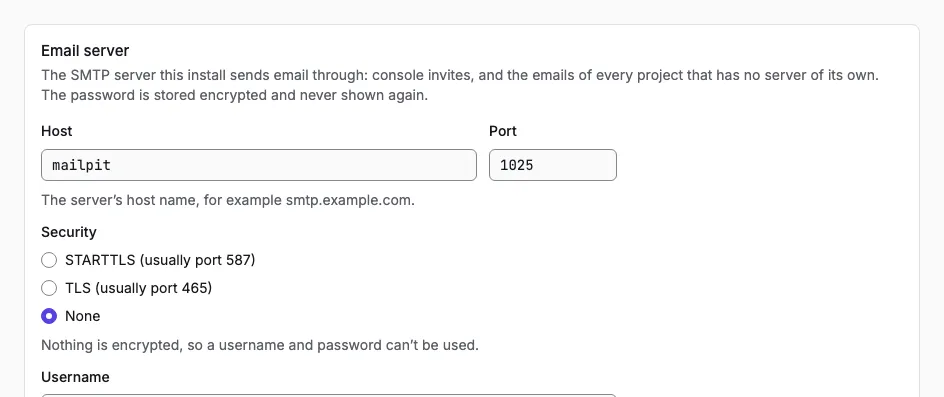
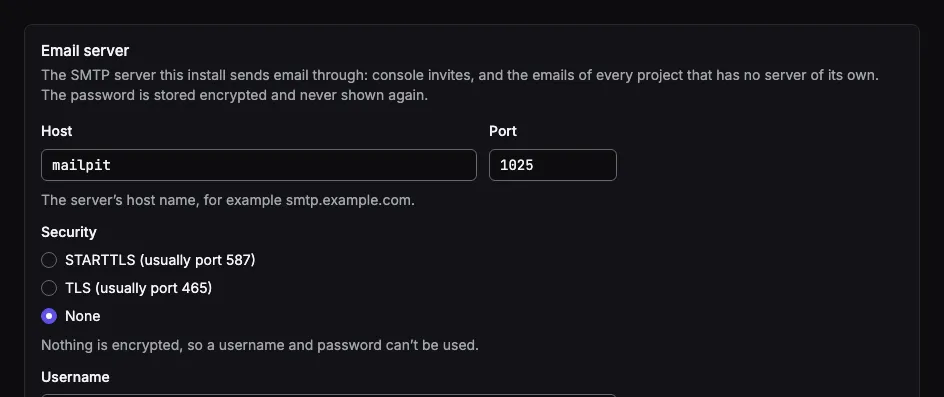
In Email server, fill in your provider’s Host, Port, and Security (STARTTLS on port 587 for most providers, or TLS on 465), the Username and Password, and a From email on a domain your provider may send for.
-
Select Send test email. Orvano sends a test to your own address and tells you what went wrong if it can’t.
-
Select Save.
Orvano encrypts the password with your master key and never shows it again. It always checks the server’s TLS certificate.
Set it up from configuration
Section titled “Set it up from configuration”To set the install’s server without the console, for example from an automated install, add two settings to /opt/orvano/.env and run docker compose up -d:
ORVANO_INSTALL_SMTP_URL=smtp+starttls://user:password@smtp.example.comORVANO_INSTALL_SMTP_FROM=orvano@example.com| Scheme | Security | Default port |
|---|---|---|
smtp:// |
none (no username allowed) | 25 |
smtp+starttls:// |
STARTTLS | 587 |
smtps:// |
TLS | 465 |
Percent encode special characters in the username and password, such as @ as %40. Orvano writes this server once, when there is none yet. A change you make later in the console wins; if you remove the server in the console, the setting adds it back on the next restart. A bad value stops Orvano at startup with a message naming the setting.
Make your email arrive
Section titled “Make your email arrive”Most delivery problems come from the sending domain, not Orvano:
- Set up SPF, DKIM, and DMARC for the From domain, as your provider explains.
- Use a From address on a domain you own, not a free mailbox.
- Change the default templates’ text to match your app, in the console’s Templates tab.
When a send fails
Section titled “When a send fails”Orvano queues each email and tries it up to 6 times over about 15 minutes, waiting 30 seconds, then 1, 2, 4, and 8 minutes. It retries when the server can’t be reached, times out, or answers with a temporary error; a wrong password, a TLS failure, or a permanent refusal fails at once. Every attempt uses the settings in effect at that moment, so fixing a password rescues emails still waiting. An email still unsent after 30 minutes is dropped, because its link or code would be nearly expired.
Each project’s Email page has a Log of the last 30 days, with the reason for every failure:
| Reason | What to check |
|---|---|
smtp_unreachable |
the host and port, and that your server may connect out on that port |
smtp_tls_failed |
the Security setting matches the port, and the server’s certificate is valid |
smtp_auth_failed |
the username and password |
smtp_rejected |
the From address is allowed by your provider |
smtp_timeout |
the provider’s status, or a firewall dropping the connection |
Private mail servers
Section titled “Private mail servers”A project’s own server must be on a public address: Orvano refuses a host that points to a private network with smtp_host_not_allowed, so one project can’t reach other machines on your network. The install’s server has no such limit. If your projects really should use a mail server on your private network, set ORVANO_SMTP_ALLOW_PRIVATE_HOSTS=true.